Using the Inspector
The Inspector pane allows you to view detailed information on any of your objects or views.
Displayed by default on the right of your screen, you can show and hide the Inspector pane by selecting Workspace > Panes > Inspector in the top-right corner of the application, or by pressing Ctrl+F3 on your keyboard.
The Inspector works in conjunction with the JewelExplorer and your views. To show information of an object in the Inspector, click on the object in the JewelExplorer or in a view to select it. You can switch to different types of information by clicking on one of the icons at the top of the Inspector pane:

 Object Inspector
The Object Inspector shows the name of the item you have selected in the JewelExplorer or in the active view, and, if you have selected a property, the current display settings of the selected property. It depends on the object which settings are available. The most common options in the Object Inspector are:
- When the selected object is a property of a point set, 2D grid, 3D grid, 3D mesh, voxel grid or a tri-mesh property with storage type 'Triangle', the Object Inspector provides filter options to filter the object based on property values, see Filtering properties below. You can check the storage type in the Property Inspector
 . When the selected property is a discrete property of a tri-mesh with storage type 'Node' and multiple realizations or time steps , the only thing you can change is which realization to display.
 - When the selected object is a discrete well log, the Object Inspector shows the property classes (filter options are disabled). If the discrete log has multiple realizations or time steps, you can select which realization to display.
-
- When the selected object is a cross section, the Object Inspector shows options to change the projection distance of wellbores and point sets.
With the Object Inspector you can filter point sets, 2D grids, tri-meshes*, 3D grids, 3D meshes and voxel grids based on their properties (* tri-meshes only when the storage type of the tri-mesh property is 'Triangle'). Both continuous and discrete properties can be used as filter. The filtering acts per view, except for filters applied to 2D grids and voxel grids: for these objects the filter acts on all views where the object is shown.
To filter an object based on property values, select the property of one of the objects mentioned before in the JewelExplorer and open the Object Inspector:
- For continuous properties, the Object Inspector shows a slider with endpoints corresponding to the minimum and maximum values of the property (initial status, no filter set). To apply a filter, narrow the range between the min/max slider values by dragging the slider(s) or entering values in the min/max fields: in the view, the property values outside of the range (and as indicated by the gray slider) will not be visible (i.e., 'filtered out'). Note that the minimum/maximum slider values are included in the visible range.
- Check the Invert selection checkbox to do the opposite, i.e., all property values outside of the range will be visible (the minimum/maximum slider values will be excluded from the visible range).
- For discrete properties, the Object Inspector shows property classes in a table with all checkboxes checked (initial status, no filter set). A checkbox checked means a property class is shown in the view. To apply a filter, uncheck the box(es) of classes that you want to exclude from view.
-
When the selected object is a property (of a polyline set, a point set, 2D grid, 3D grid, 3D mesh, voxel grid, a marker, or a tri-mesh), the Object Inspector shows the display settings Colorset and Realization. You can only change the colorset of continuous properties in the Object Inspector. To change the colors of a discrete property, use the Discrete Property Class Editor.
Undefined - At the top of the form, the 'Undefined' checkbox is checked by default which means that undefined values are shown in the view (it is not an indication that undefined values are present). Uncheck the box to hide undefined values in the view.
Apply Filter - By default, in the 'Apply Filter' section at the base of the pane, the Manual radio-button is selected. With this option selected, you have to click the Apply button located next to it to render the view with the current filter settings. Select Automatic in case you want to automatically render the view each time you make a change to the filter settings, e.g., when deselecting a property class checkbox or dragging the slider. When rendering is slow, a progress bar at the base of the window indicates that rendering is currently taking place.
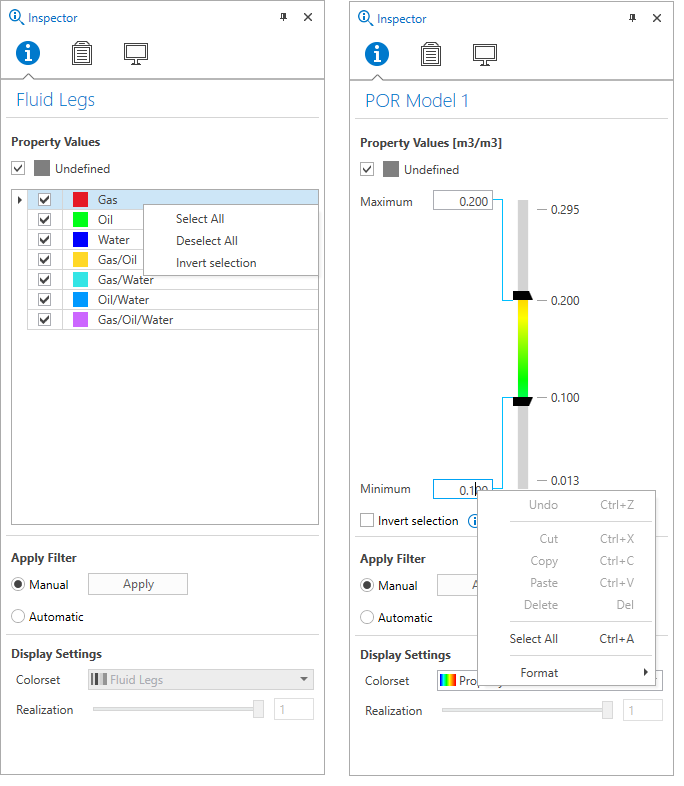
Filter options are available in the Object Inspector when a property of a filterable object is selected in the JewelExplorer. On the left, a discrete property; on the right, a continuous property. Note the context menu options that appear when right-mouse clicking on a property class (left image) or on the minimum/maximum entry fields (right image). click to enlarge
 Property Inspector
 The Property Inspector shows the geometrical and graphical properties of the selected object. You can change certain properties by clicking on values and editing them, or by selecting different options from the drop-down lists. Properties that cannot be changed are grayed out (read-only).
For objects that are a data representation, such as a polyline set, tri-mesh and 3D grid, but also a lease boundary or free water level, the Property Inspector shows display settings where you can change the property that is shown for the object, the colors (colorset) used to display this property and the realization if the property has more than one of these.
The Property Inspector has a toolbar so you can find the information that you are looking for quick and easy.

|
Sort by category. |

|
Sort alphabetically. |

|
Search for a geometrical or graphical property. |
The Property Inspector shows different categories depending on the object type selected. Some examples are:
- General (type, name, etc.).
- Graphics (for all views). Graphical properties that apply to all views, such as object color and mesh color.
- Display parameters (for the objects in the active view). Graphical properties that can be specified for each view, such as transparency, contouring, smooth shading, etc. Using these, you can render the same object in multiple views with different settings (e.g., contouring in one view and solid and transparent in another view).
- Data management (owner, date created, date modified etc.)
- Geometry (all the geometrical properties, such as 3D location).
- Time (start date, end date, etc.).
Selecting multiple objects
You can select multiple objects in JewelExplorer and change the geometrical and graphical properties (e.g., display parameters, graphics parameters, etc.) of all these objects at once using the Property Inspector ().
The Inspector will only show the parameters that are available for all the selected objects. If the parameter values are similar, the value will be shown, otherwise it will remain blank. Editing a parameter value will change that parameter for all the selected objects.
 View Inspector
The View Inspector shows the properties of the active view. You can use the View Inspector to change the name of a view, change its background color, or adjust the lighting settings for a 3D View.
The View Inspector has a toolbar so you can find the information that you are looking for quick and easy.
|
|
Sort by category. |
|
|
Sort alphabetically. |
|
|
Search for a geometrical or graphical property. |
Depending on the type of view there are different categories:
- General (name, background color etc.).
- Compass (for 3D View
- Geometry (for 3D View
- Lighting (for 3D View). You can change the 'MSAA (Multisample Anti-Aliasing) number of samples' to control your display quality versus rendering speed.
- ACS (for Cross Section View).
- Display settings (for Seismic View).
- Labels (for Seismic View).